Admin Panel
Character Template Editor
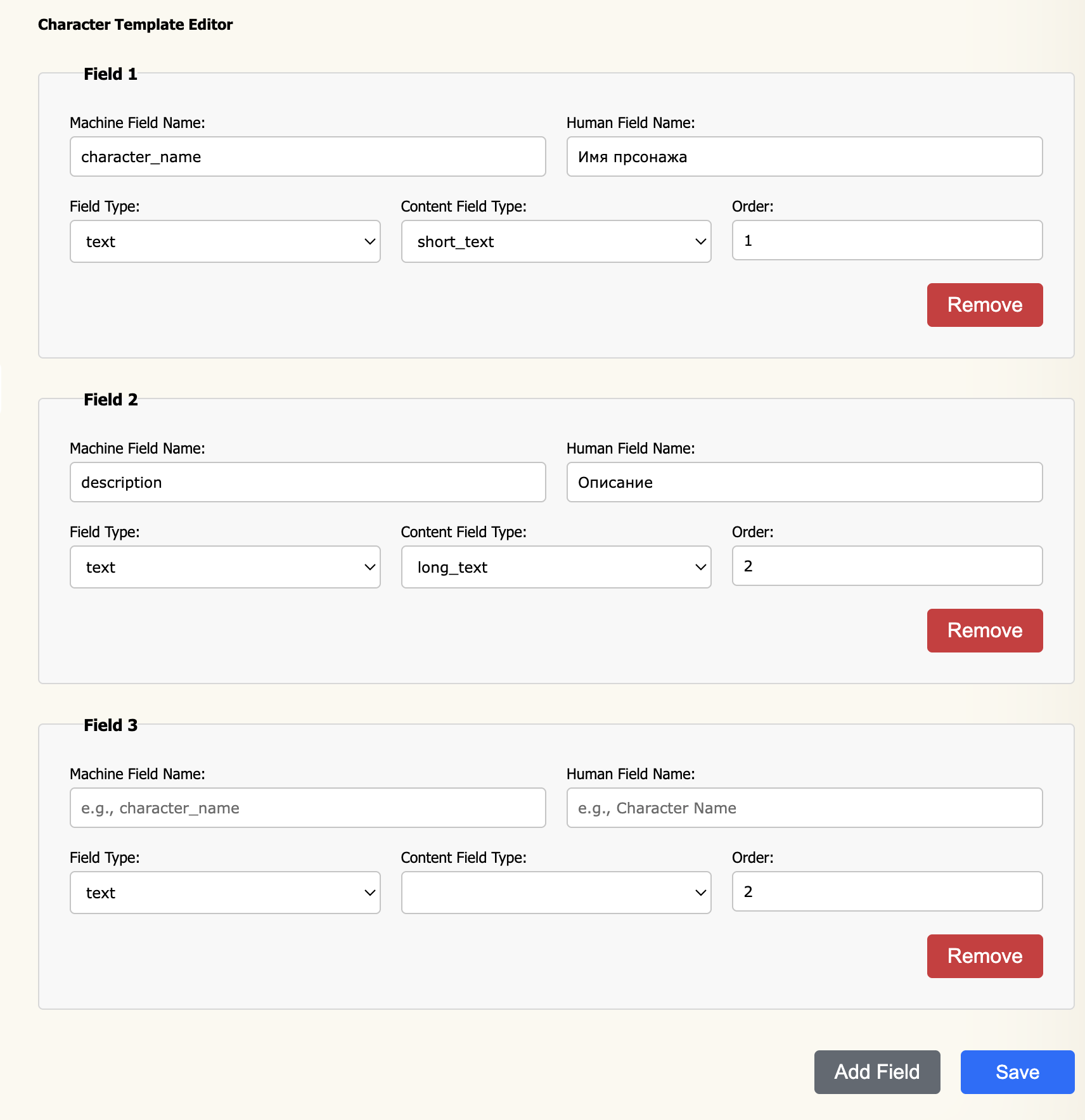
The Character Template Editor defines the fields that appear on every character sheet on your board. You control what information members fill in when creating a character — name, age, appearance, biography, or anything your game system requires.
How it works
Each row in the editor defines one field on the character sheet. The order of rows determines the order fields appear to members. Add as many fields as your game needs, arrange them, and save — the template applies to all characters on the board.
Changing the template does not delete existing character data. Removing a field
from the template hides it from the sheet UI but the underlying data is retained.
Renaming the Machine Field Name of an existing field, however,
will effectively disconnect it from stored data — treat machine names as permanent
once characters have been created.
Field properties
The internal identifier for this field, used in the database and API.
Use lowercase letters and underscores only — for example
character_name,
age, eye_colour. This name must be unique across all
fields in the template. It cannot be changed after characters have been created
with this field.
The label shown to members on the character sheet. This can be in any language
and changed freely at any time — for example
Character Name,
Age, Eye Colour.
The type of input control shown to members when they fill in this field.
| Value | Input shown |
|---|---|
string | Single-line text box |
text | Multi-line text area |
int | Whole number input |
decimal | Decimal number input |
date | Date picker |
How the value is stored and rendered. Choose the type that best matches
what the field will contain.
| Value | Use for |
|---|---|
short_text | Brief values up to 255 characters (names, titles, ages) |
long_text | Extended prose (biography, personality, history) |
number | Integer values |
decimal | Floating-point values |
image | An uploaded image (avatar, reference art) |
cropped_image | An image cropped to exact pixel dimensions — reveals Width and Height fields |
Determines the position of this field on the character sheet. Fields are sorted
by this number in ascending order. Use gaps (1, 10, 20…) if you expect to
insert fields between existing ones later.
Only visible when Content Field Type is set to
cropped_image. Defines the exact pixel dimensions images will
be cropped to when members upload them. Useful for keeping portrait slots
or header images consistent across all character sheets.
Managing fields
Appends a new blank field row at the bottom of the template. Fill in all
properties before saving. Fields with an empty Machine Field Name are
ignored when saving.
Removes that field from the template immediately in the editor. The change
is not permanent until you click Save.
Saves the entire template in one go. All fields (except those with an empty
Machine Field Name) are sent to the server. The button shows a confirmation
state briefly before returning to idle.
Example template
A simple fantasy character sheet might use the following fields:
| Machine Name | Human Name | Field Type | Content Type | Order |
|---|---|---|---|---|
character_name | Character Name | string | short_text | 1 |
portrait | Portrait | string | cropped_image | 2 |
age | Age | int | number | 3 |
biography | Biography | text | long_text | 4 |