Admin Panel
Factions
The Factions page lets you build a hierarchy of groups that characters can belong to — houses, guilds, factions, species, or any other category your world requires. Factions can be nested to any depth using parent–child relationships.
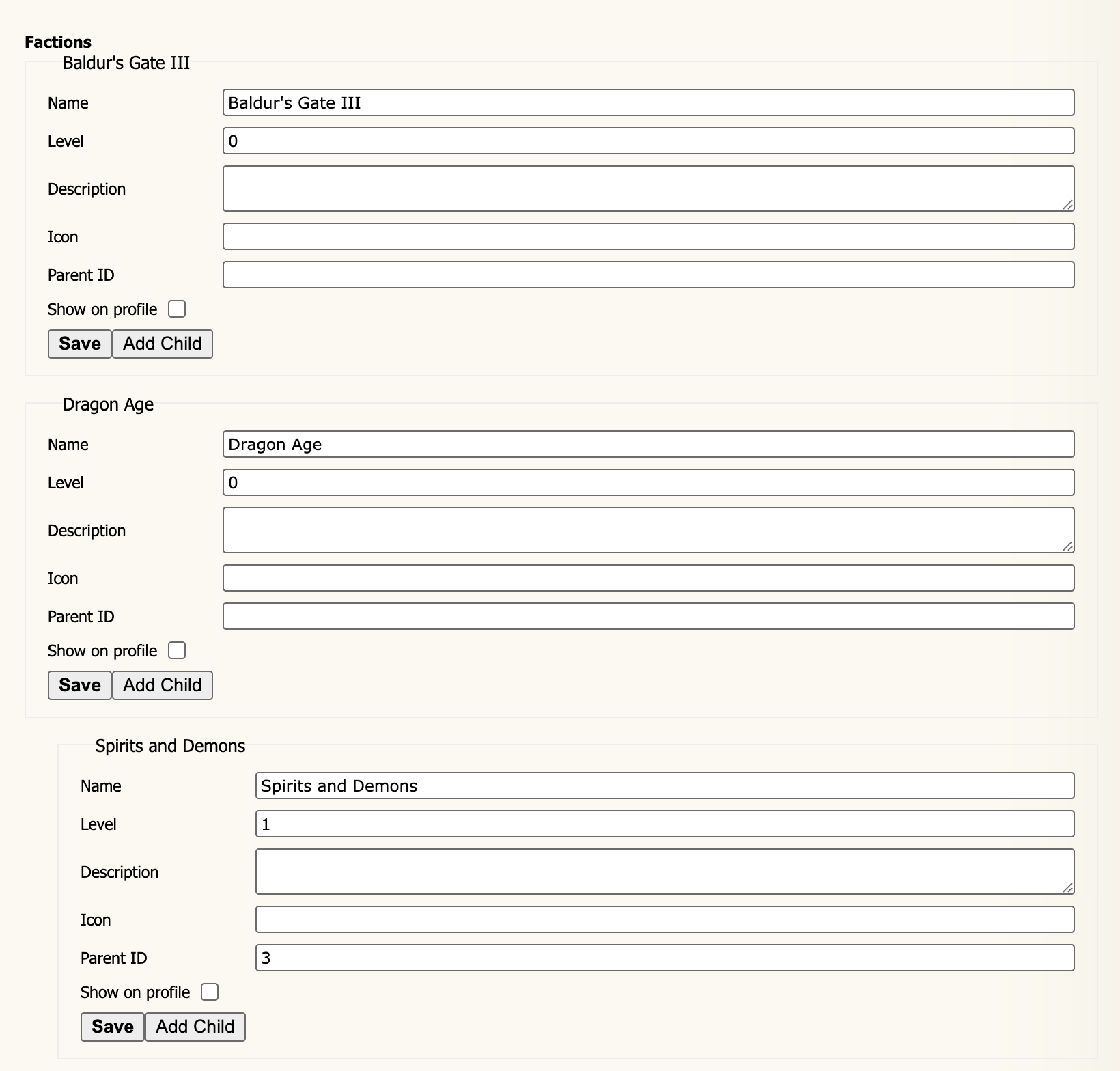
Structure
Factions form a tree. Top-level factions have a Level of 0
and no Parent ID. Child factions have a positive level and a Parent ID pointing to their
parent. The indentation on the page reflects the nesting depth.
Fields
The display name of the faction, shown on character profiles, the faction list, and anywhere factions are referenced.
The depth of this faction in the hierarchy.
0 = top-level; 1 = one level down, and so on.
This is set automatically when you use Add Child and does not normally need to be edited manually.
An optional description of the faction, visible to members on the faction's page.
An optional icon identifier or image URL displayed alongside the faction name.
The ID of this faction's parent. Leave empty for a top-level faction. You can find a
faction's ID in its URL or by noting its position on this page. Changing this value
moves the faction (and all its children) to a different parent.
When checked, this faction is displayed on the character profiles of members who belong to it.
Uncheck to use the faction for internal organisation without surfacing it to players.
Actions
Saves changes to that faction's fields. Each faction has its own Save button.
Creates a new faction as a direct child of this one. The child's Level and Parent ID
are pre-filled automatically. Fill in the remaining fields and click Save on the new row.