Admin Panel
Subforums
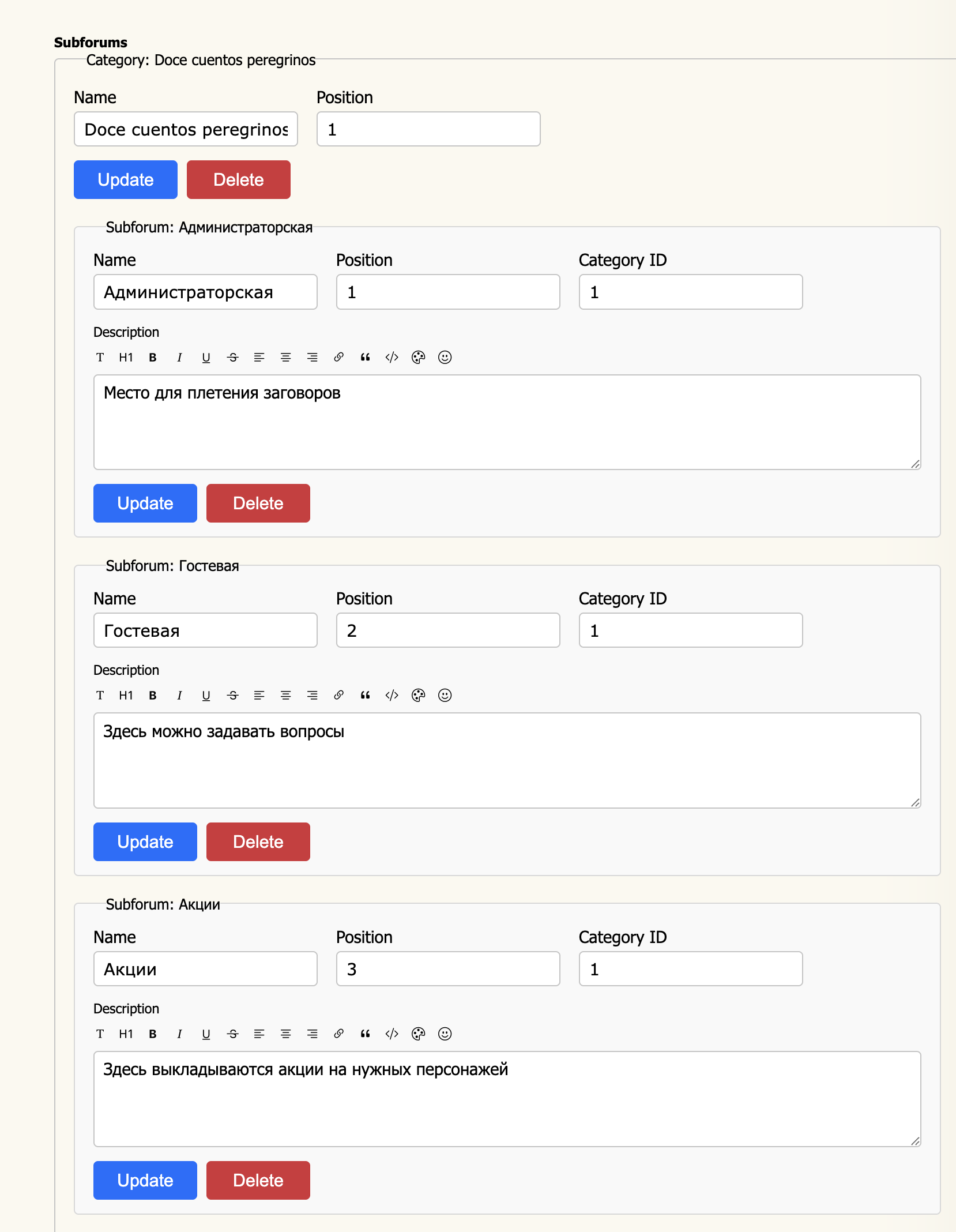
The Subforums page is where you build and maintain the structure of your board.
Content is organised in a two-level hierarchy: Categories group
related Subforums together. You can create, reorder, edit, and
delete both from this page.
Structure
Every subforum belongs to exactly one category. Categories provide top-level
groupings (e.g. "In-Character", "Out-of-Character") while subforums are the
actual boards where members post threads (e.g. "The Tavern", "Introductions").
The page lists all categories in order, with each category's subforums
nested beneath it. Scroll down to find the subforum you want to edit.
Category fields
The display name of the category, shown as a section heading on the forum index.
Controls the order in which categories appear. Lower numbers appear first.
Categories with equal positions are sorted by their database ID.
Subforum fields
The display name of the subforum, shown as a link on the forum index and in breadcrumbs.
Order of this subforum within its category. Lower numbers appear first.
The ID of the parent category. Change this value to move the subforum to a
different category. You can find a category's ID in its URL or by noting the
order in which they appear on this page.
A short description displayed below the subforum name on the forum index.
The editor supports BBCode formatting — use the toolbar above the text area
to add bold, italic, links, and other formatting.
Actions
Saves any changes made to that category or subforum's fields. Each item has
its own Update button — clicking it saves only that item.
Permanently removes the category or subforum. Deleting a category also removes
all of its subforums. This cannot be undone — make sure you have moved any
content you want to keep before deleting.
Creating new items
To add a new subforum or category, scroll to the bottom of the page and use
the creation form. New items appear in the list immediately after you save them.
Fill in all fields before saving — a subforum without a name or category ID
cannot be saved.